
The WorkDuo Looker Studio connector is a community-built integration that allows you to seamlessly bring your AI search visibility data into Google Looker Studio. With this connector, you can build tailored dashboards and reports that showcase your brand’s performance across AI-driven search platforms such as ChatGPT, Perplexity, and Gemini, etc.
To set up the WorkDuo Looker Studio connector, make sure you have:
- An active WorkDuo account with access to at least one project
- A Google account with Looker Studio access
Open the WorkDuo connector link (ensure you're signed into your Google account). Fill in your basic details to complete the account setup.
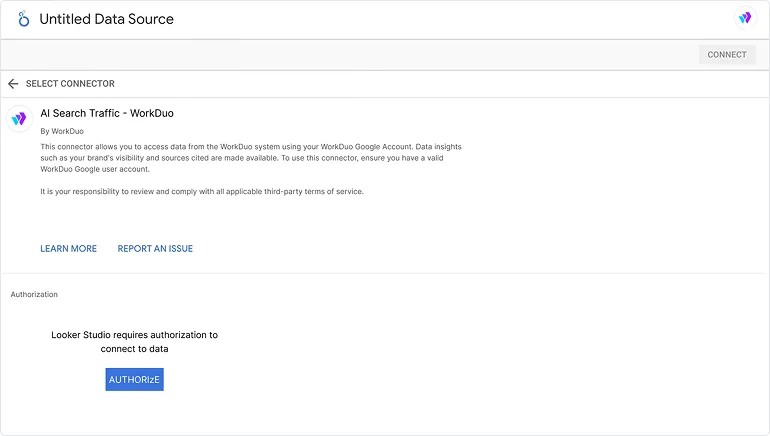
Click AUTHORIZE to initiate the OAuth2 process
You will be redirected to Google’s sign-in page; log in if necessary.
If you see the warning "Google hasn’t verified this app" (which is common for community connectors).
Click on Advanced → Go to WorkDuo and allow the required permissions.
After being redirected back to Looker Studio, once authorization is complete. Another AUTHORIZE button will appear below “AI Analytics - WorkDuo requires authorization to connect to data.”
Click on AUTHORIZE.
In the WorkDuo Looker Authenticator pop-up, select Continue with Google and sign in.
Once prompted, close the window and return back to the Looker Studio page.
Select the WorkDuo Workspace you want to connect. To enable switching between multiple workspaces in reports, activate the parameter option.
Click CONNECT to finalize the setup. The connector will validate your configuration and pull sample data. You’ll then see all available fields for building your reports.
Step 1: Create a new report
1. After configuring your data source, click CREATE REPORT.
2.Looker Studio will open the report editor with your WorkDuo data source connected.
Step 2: Add visualizations
Looker Studio offers a wide range of charts and tables to fit your needs.
Step 3: Apply filters and controls
Add interactive controls to make your reports dynamic.
Authorization Failed
- Ensure you’re using the correct Google account.
- Clear browser cache and try again.
- Check that your account has access to the Peec AI Project.
No Data Available
- Verify you’ve selected the correct WorkDuo workspace.
- Check that your date range includes data.
- Ensure your filters aren’t too restrictive.
Connection Timeout
- Try reducing the date range.
- Remove unnecessary filters.
- Contact support if the issue persists.
Invalid Project
- Double-check your Project in the WorkDuo dashboard.
- Ensure you have access permissions to the Project.
- Contact your account administrator if needed.
If you encounter issues not covered here, contact the Support Team with description of the issue, screenshots if applicable
Support Center