How to Track AI Traffic in GA4 (2026): Step-by-Step Guide
.png)
- GA4 does not label AI traffic by default: Visits from ChatGPT, Gemini, Perplexity, Copilot, and Claude often appear under Referral, Direct, or Unassigned, so you need a custom setup to track AI traffic properly.
- Track AI traffic in GA4 in three ways: Use Traffic Acquisition for a quick baseline, build an Exploration with regex filters for ongoing analysis, and use UTMs for links you control to improve attribution.
- Create a custom AI channel group: Add an AI traffic channel group using Session source regex, place it above Referral, and save an AI-only report for easier team reporting.
- Measure beyond traffic volume: Review engagement and conversions, update AI source rules regularly, and use WorkDuo to track AI visibility, sentiment, and competitor movement end to end.
By default, GA4 does not recognize “AI traffic” as its own thing. Visits from ChatGPT, Gemini, or other AI assistants are often lumped into Referral, Direct, or “Unassigned,” which makes AI search appear invisible in your reports.
That creates a real measurement problem. You cannot optimize what you cannot see, and you cannot justify investment in AI search if the traffic is hidden inside messy reporting.
Adobe found that traffic from AI-driven referrals increased more than tenfold in the U.S. between July 2024 and February 2025, which makes proper GA4 setup feel less like a nice-to-have and more like a basic requirement.
How to Track AI Traffic in GA4 (Step-by-Step)
These are the exact steps you need to follow to identify and report on AI traffic in GA4.
Step-By-Step Setup (Do This First)
Step 1: Identify AI Referral Sources
The first step is to identify the common referral domains associated with AI platforms. Some prominent examples include:
- chat.openai.com (ChatGPT)
- perplexity.ai (Perplexity AI)
- gemini.google.com (Google Gemini)
- copilot.microsoft.com (Microsoft Copilot)
- claude.ai (Anthropic Claude)
Step 2: Confirm GA4 Can “See” AI Referrals (Quick Test)
Before you build reports, run a quick test to make sure GA4 is receiving AI referrer data.
- In GA4, go to Reports → Realtime.
- Click a link to your site from an AI tool (for example, ChatGPT), then look at the Traffic source in Realtime to see whether a referrer is passed through (often it shows as a referral domain, but not always).
Step 3: Clean Up Noise So AI Traffic Is Not Distorted (Internal Traffic)
Exclude internal traffic early to avoid inflated AI traffic numbers from team testing.
- In GA4, go to Admin → Data collection and modification → Data filters.
- Create and activate an Internal traffic filter to prevent team testing from polluting your AI traffic checks and explorations.
3 Unique Ways to Track AI Traffic
Method 1. Find AI Traffic in Standard GA4 Reports (Fastest Way)
Start with Traffic acquisition to establish a clear baseline for AI traffic and its core performance metrics.
- Go to Reports → Acquisition → Traffic acquisition.
- Use the report filter to narrow to AI referrers by Session source/medium (or Session source), and search for known AI domains such as chat.openai.com or perplexity.ai.
- Review quality metrics like Engagement rate, Average engagement time, and Key events/Conversions for those sources.
Method 2. Build an Exploration That Isolates AI Sessions (Best for Ongoing Tracking)
Start by setting up the Exploration:
- Go to Explore → Free form (or Blank).
- Add Dimensions:
- Session source/medium (and optionally Session source)
- Optional: Landing page + query string for which pages AI visitors enter on
- Add Metrics: Sessions, Engaged sessions, Key events (plus revenue metrics if relevant).
- Apply filters: Create a Session segment called “AI referrals” and apply either of these conditions:
- Option A (recommended): Session source matches regex with something like:
chat\.openai\.com|perplexity\.ai|gemini\.google\.com|copilot\.microsoft\.com|claude\.ai - Option B (if you tag links with UTMs you control): filter to your UTM source, for example: Session source exactly matches chatgpt (or ai_platform)
- Option A (recommended): Session source matches regex with something like:
Method 3. Make AI visits easier to attribute (UTM tagging)
UTM tagging provides cleaner attribution for AI-related links you manage directly.
- When you control the link (newsletters, partnerships, your own shares), add UTMs like:
- utm_source=chatgpt (or perplexity, gemini)
- utm_medium=ai
- utm_campaign=ai_visibility
- In GA4, filter by Session campaign or Session source/medium to report cleanly on tagged AI traffic.
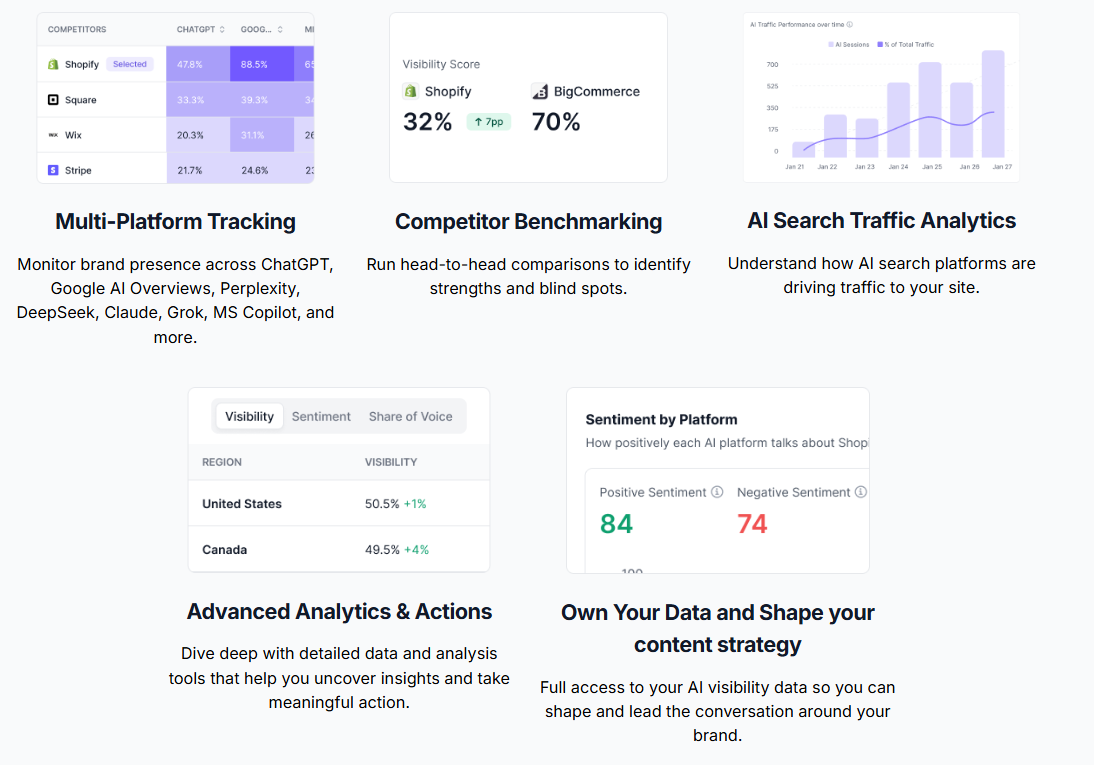
GA4 can show you when AI platforms send traffic, but it won’t tell you how your brand is showing up inside those AI answers, like which products get recommended, whether competitors are outranking you, or what sentiment the model is using.
WorkDuo fills that gap by tracking brand and product level visibility across major AI platforms, with real-time browser tracking, which is more accurate than regular API tracking, so you can spot what changed, fix what’s slipping, and then validate the impact in GA4.
How to Create an AI Traffic Channel Group for Ongoing Reporting
Follow the steps below to create an AI traffic channel group for ongoing reporting, so AI visits are cleanly categorized and stay visible without manual filtering every time.
Step 1: Go to Channel Groups in GA4
This is where you create and manage custom channel groups at the property level.
- In GA4, click Admin.
- Under Data display, click Channel groups.
- Click Create new channel group (you need Editor access or higher).
Step 2: Create the Channel Group
Give the group a clear name so it’s easy to select in reports later.
- Name the group (example: AI channel group).
- Save if GA4 prompts you to confirm the new group.
Step 3: Add a New Channel for AI Traffic
You’ll create one channel inside the group that captures AI referrers using rules.
- Click Add new channel.
- Name it (example: Artificial Intelligence).
- Open the channel rules editor.
Step 4: Add the Matching Rules Using Regex
This is the core step that tells GA4 which sources should be labeled as AI traffic.
- Set the dimension to Session source.
- Set the match type to matches regex.
- Paste a regex list, for example:
chat\.openai\.com|perplexity\.ai|gemini\.google\.com|copilot\.microsoft\.com|claude\.ai - Click Apply, then Save channel, then Save group.
Step 5: Reorder the Channel So It Is Evaluated Before Referral
GA4 evaluates channels in order, so your AI channel should sit above Referral to catch those sessions first.
- Click Reorder (or the equivalent ordering control).
- Move Artificial Intelligence above Referral.
- Click Apply, then Save.
Step 6: Validate the Channel Group in Traffic Acquisition
This confirms GA4 is now classifying AI traffic under your custom channel group.
- Go to Reports → Acquisition → Traffic acquisition.
- Switch the dimension dropdown to your custom channel group.
- Confirm you see a row labeled "Artificial Intelligence" with sessions.
Step 7: Create an AI-Only Report and Add It to the Left Navigation
This makes AI traffic a permanent report that your team can click on anytime.
- Open Traffic acquisition, then click the pencil icon to customize the report (permission required).
- Add a filter that matches the Session custom channel group exactly to the Artificial Intelligence channel group.
- Change the primary dimension to Session source (or Session source/medium) to list AI tools.
- Click Save → Save as a new report, then name it (example: AI traffic).
- Go to Reports → Library, edit the relevant collection (often Life cycle), drag your new report into the right section, then save.
Common Mistakes to Avoid When Tracking AI Traffic in GA4
Before you rely on your AI traffic data, watch out for these common setup and reporting mistakes in GA4.
1. Ignoring the Nuances of AI Referral Data
AI traffic is messy. Some AI tools strip referrer data, use redirects, or route traffic through domain changes, so some of that traffic may appear as Direct or Unassigned rather than a clear referral.
2. Misinterpreting AI Engagement Behavior
A common mistake is reading AI traffic like normal search traffic. AI visitors may land on one page, get what they need quickly, and leave, which can look weak if you only look at bounce-style signals.
3. Stopping at Traffic Volume and Not Checking Quality
Seeing AI sessions increase is useful, but volume alone does not tell you whether AI traffic is valuable. You need to review engagement and conversion metrics to know if those visits are actually contributing to leads, revenue, or meaningful actions.
4. Relying Only on Default GA4 Channel Groupings
Default GA4 channel groupings are not enough for AI tracking because AI visits are often mixed into Referral, Direct, or Unassigned. A custom channel group is the cleaner way to consistently segment AI traffic.
Make AI Search Measurable End-To-End With Workduo
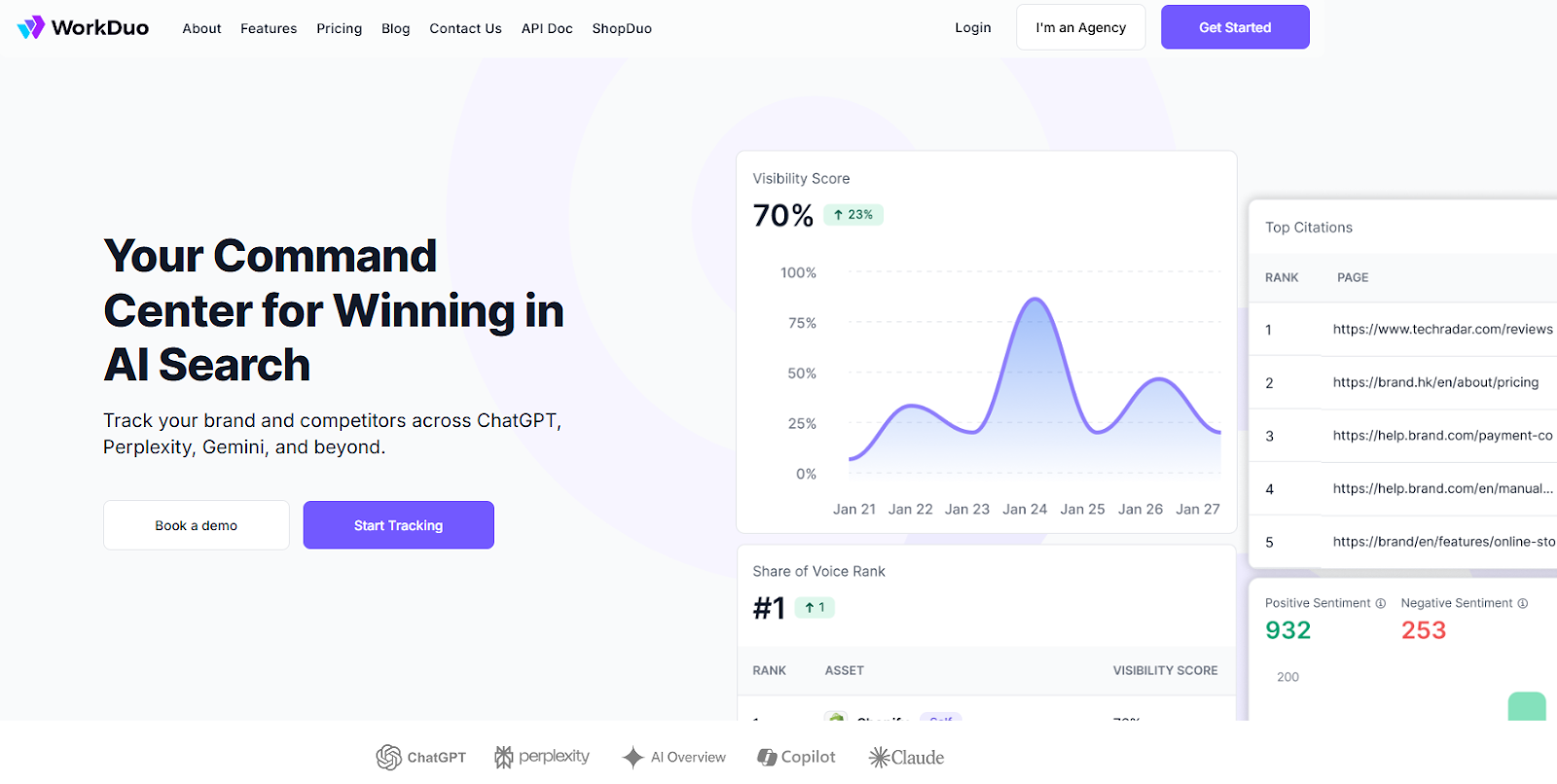
GA4 shows you when AI sends traffic, but it cannot tell you why you appear, what gets recommended, or when competitors overtake you.
WorkDuo connects AI visibility with GA4 outcomes, tracking brand and product presence, sentiment, and changes across AI platforms, then validating impact in analytics. Stop guessing. See it end-to-end with a free trial.
How to Track AI Traffic in GA4: FAQs
1. What’s the difference between AI traffic, organic search, and referral in GA4?
In GA4, the difference comes down to where the visit originates and how GA4 classifies it, not whether AI was involved in answering a question.
What’s Considered AI Traffic in GA4?
In GA4, “AI traffic” usually means visits that come from AI platforms or AI assistants such as ChatGPT, Gemini, Perplexity, Copilot, and Claude, but GA4 does not label this as a built-in channel, so those visits often appear under Referral (or sometimes Direct/Unassigned if referrer data is not passed).
- Example: chat.openai.com/referral or perplexity.ai/referral in the Session source/medium is typically considered AI traffic in GA4.
What you can (and can’t) track in GA4?
In GA4, you can track AI traffic only when source/referrer data is available, which means you can usually see which AI tool sent the visit (via Session source or Session source/medium, like chat.openai.com/referral) plus sessions, landing pages, engaged sessions, and conversions.
But you cannot reliably track AI clicks with stripped referrers (they may show as Direct/Unassigned), and GA4 also cannot show AI answer sentiment, share of voice, citations, or position/visibility inside AI results.
Fiona is the Co‑Founder of WorkDuo AI, where she helps brands optimize their AI search visibility. Previously, she co‑founded SHOPLINE, a smart commerce platform in Asia, and led its successful exit to a NASDAQ‑listed company in 2022. With deep expertise in scaling tech businesses and working with global investors, Fiona now advises startups on growth and data-driven decision-making, while leading WorkDuo’s mission to improve how brands are represented in AI-driven search.

Ready to try our product?
Sign up for a free consultation with our experts.


Follow Us on Social Media
Follow our profiles for daily updates, behind-the-scenes content, and more.



More articles